
Let your own server look up a contact
Create an account API key on Settings, then have your server request a phone screen or a contact verification on a contact in your CRM.
7 min read
Before you start
- DialClear installed in your CRM
- The `Admin` role in your CRM, to create or revoke keys
- The contact id of a contact in that CRM account
Tip
Name each key after the server that uses it, so you know which one to revoke later.
A server of your own can ask DialClear for a phone screen or a contact verification on a specific contact in your CRM. The lookup works the same as an automatic one. The result is saved on the contact in its DialClear fields, it appears in Lookups, and the cost goes to your CRM wallet at your account's normal rate.
Before you start
A key belongs to you and to one account. You only see your own keys, and if you work in several accounts you have a separate set in each. A key works only in the account it was created in, so you never have to say which account in a request. If you leave the account, your keys stop working right away.
Create a key
Step 1. Open the API keys card
Open Settings for the account the key is for, and scroll to API keys at the bottom. Only people with the Admin role in your CRM see the name box and the Revoke buttons.
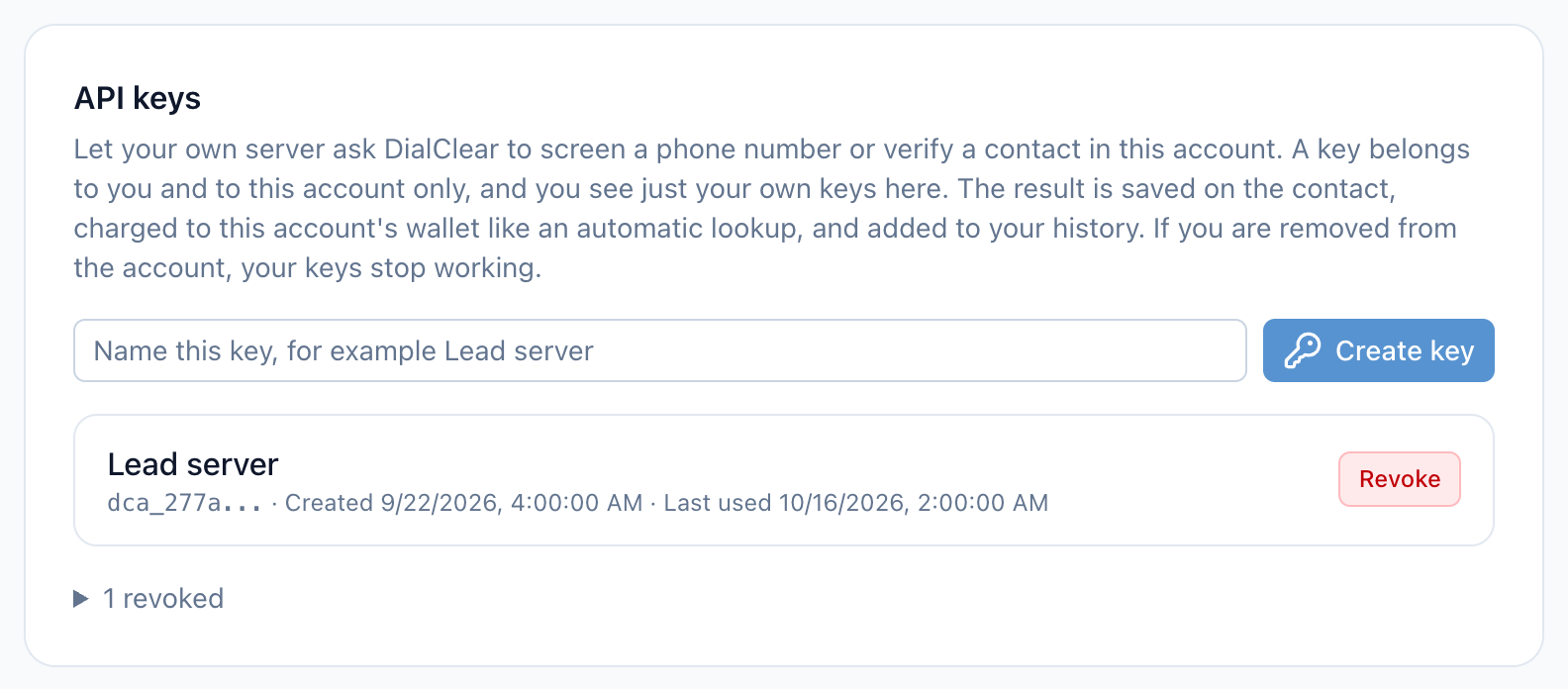
- Type a name for the key here, up to 60 characters.
- Create key makes the key. It stays grayed out until the name box has text.
- Each active key shows its name, the first few characters of the key, when it was created and when it was last used.
- Revoke turns the key off for good.
- Revoked keys move to this collapsed list, so you keep a record of them.
Step 2. Name the key
Type a name in the box, for example Lead server. The name is how you tell keys apart in the list.
Step 3. Select Create key
Select Create key. A green box appears with the full key, which starts with dca_.
Step 4. Copy the key
Select Copy. The button reads "Copied" for a moment. Paste the key into your server's settings, then select Done to close the box.
Warning
DialClear shows a key one time only. Once you close the box or leave the page, the key cannot be shown again. If you lose it, revoke it and create a new one.
Read the key list
Each active key shows its name, the first few characters of the key, when it was created, and when it was last used. "Last used Never" means nothing has called with it yet. Last used updates within a few minutes of a request.
You can hold up to 10 active keys in each account. That leaves room for one key per server and for a new key while you retire an old one. To create an 11th, revoke one first.
Revoke a key
Step 1. Select Revoke
Find the key in the list and select Revoke.
Step 2. Confirm
A box asks "Revoke this key?" and warns that anything still using it stops working right away. Select Revoke key, or Cancel to keep the key.
The key stops working at once and cannot be turned back on. It moves to a collapsed list under the active keys, for example "1 revoked", so you keep a record of it.
Send a request
Step 1. Pick the service
Use /phonescrub for a phone screen and /trustedcontact for a contact verification. These are the two services that take an account key.
Step 2. Send the key and the contact
Send the key as a Bearer token in the Authorization header, and name the contact with lcContactId.
curl -H "Authorization: Bearer YOUR_KEY" "https://dialclear.co/phonescrub?lcContactId=CONTACT_ID"
DialClear reads the phone number from the contact, and the name too for a verification. Send phone or name yourself only if you want to look up something different from what is on the contact. contactId works as another name for lcContactId.
Step 3. Read the response
The response holds the same result fields as that service's standard lookup, plus these.
| Field | What it tells you |
|---|---|
charged |
Whether your wallet was charged for this request |
price |
What the lookup cost |
chargeId |
The charge it was billed under |
deliveredToCrm |
Whether the contact in your CRM was updated |
scrubbedAt |
When the lookup ran |
The full reference, with an example request and response, is on the API page under "Look up a CRM contact (account key)".
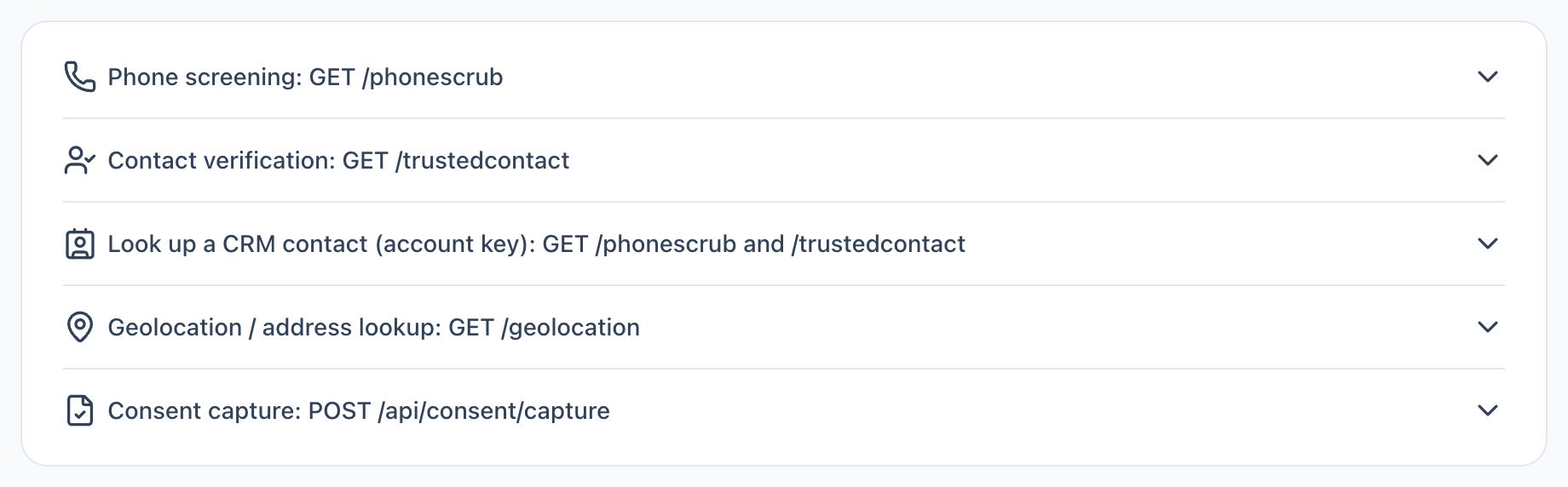
- Look up a CRM contact. Open this entry for the parameters, an example response and every error.
What to know before you use it
- Every request is a new lookup and costs money. A request does not skip because the number was checked recently. The one exception is a repeat for the same contact inside 60 seconds, such as a retry after a timeout. That repeat returns the earlier answer with
chargedset to false. - An empty wallet stops the lookup. DialClear charges your wallet first. If the wallet cannot cover it, you get an error and nothing is looked up.
- A lookup that fails is not charged. If DialClear cannot get a usable answer after taking the charge, the charge is reversed.
- Premium follows your Settings. Whether a request runs the premium reassigned number check or the premium carrier identity match depends on the premium boxes on Settings. The
premiumparameter does not apply to an account key. - The reassigned number check needs a date. Send
consentDate, the date of consent or last contact asYYYY-MM-DD, on each phone request. Without it the standard screen runs at the standard price and the answer carriesrndNotRunset toconsent-date-required. A malformed or future date returns400before anything is charged. - Your DND and wireless tag settings apply. A flagged phone screen marks the contact Do Not Disturb the same way an automatic one does.
- Keep the key private. Anyone who has it can spend your wallet. Do not put it in a web page or paste it into a chat. If it gets out, revoke it.
Troubleshooting
| Status | What it means | What to do |
|---|---|---|
| 400 | No contact was named | Add lcContactId to the request |
| 401 | The key is not valid (invalid key) |
The key was revoked, copied wrong, DialClear was uninstalled, or the person who made it left the account. Create a new key |
| 401 | The account is not enabled for API access | Lookups are not turned on for this account yet. Email support@dialclear.co |
| 402 | Your wallet cannot cover the lookup | Add funds in your CRM and send the request again |
| 403 | Scrubbing is disabled for this account | Lookups are switched off for the whole account, and the API keys card says so. Email support@dialclear.co |
| 403 | That CRM sub account is not active | The agency deactivated the sub account in the CRM. Once it is reactivated, reinstall DialClear |
| 403 | The request named a different account | Leave out locationId. The key already names its account |
| 404 | The contact is not in the key's account | Check the contact id |
| 409 | A lookup for this contact is already running | Wait a few seconds and send it again |
| 422 | Neither the request nor the contact has a usable phone number | Add a number to the contact or send phone. Nothing was charged |
| 422 | A contact verification needs a name and the contact has none | Add a name to the contact or send name. Nothing was charged |
| 502 | The lookup did not return a usable answer | Try again later. You were not charged |
| 503 | Billing is unavailable right now | Try again later. Nothing was looked up or charged |
Frequently asked questions
Who can create keys?
People with the Admin role in your CRM. Other people who open DialClear see the card without the name box or the Revoke buttons.
The card says scrubbing is switched off on this account
Keys cannot run lookups while scrubbing is off for the account. You can still create and revoke keys. They start working once scrubbing is back on.
Can I request an address and location lookup this way?
Not with an account key. Account keys run phone screening and contact verification. To run all three on one contact without code, add a trigger tag as described in Scrub a contact with a tag.
Do conditions on Settings stop a request?
No. Conditions under Only run when limit automatic lookups. A request from your server always runs.