
Manage your profile and sign in security
Change your name, email or password, add a passkey, turn on an authenticator app and pick light or dark mode.
4 min read
Before you start
- Signed in at dialclear.co
Tip
Add a passkey and an authenticator app. The passkey makes signing in faster, and the app protects your password.
Your profile holds your name, your email and the ways you sign in. These belong to you as a person, so they follow you across every account you can open.
Open your profile
Choose your name at the bottom of the left menu.
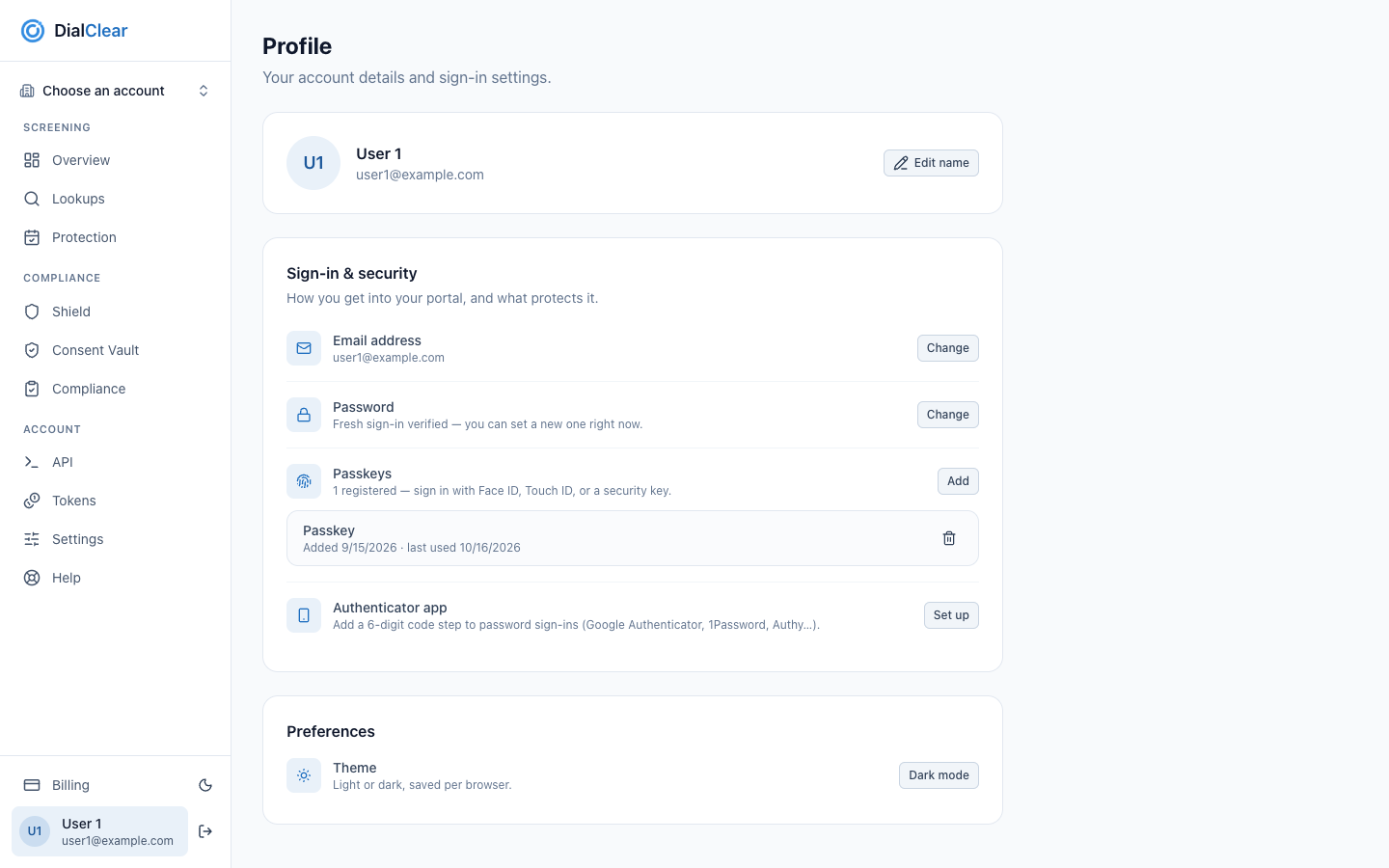
- Your name at the bottom of the left menu opens this page.
- Edit name changes the name shown in DialClear.
- Email address, Password, Passkeys and Authenticator app. Each row has its own button.
- Preferences holds the light or dark theme for this browser.
Change your name
Choose Edit name, type your first and last name and choose Save name. The name at the bottom of the menu updates right away.
If the page says your name comes from your CRM, it cannot be edited here. Change it there and it carries over.
Sign in and security
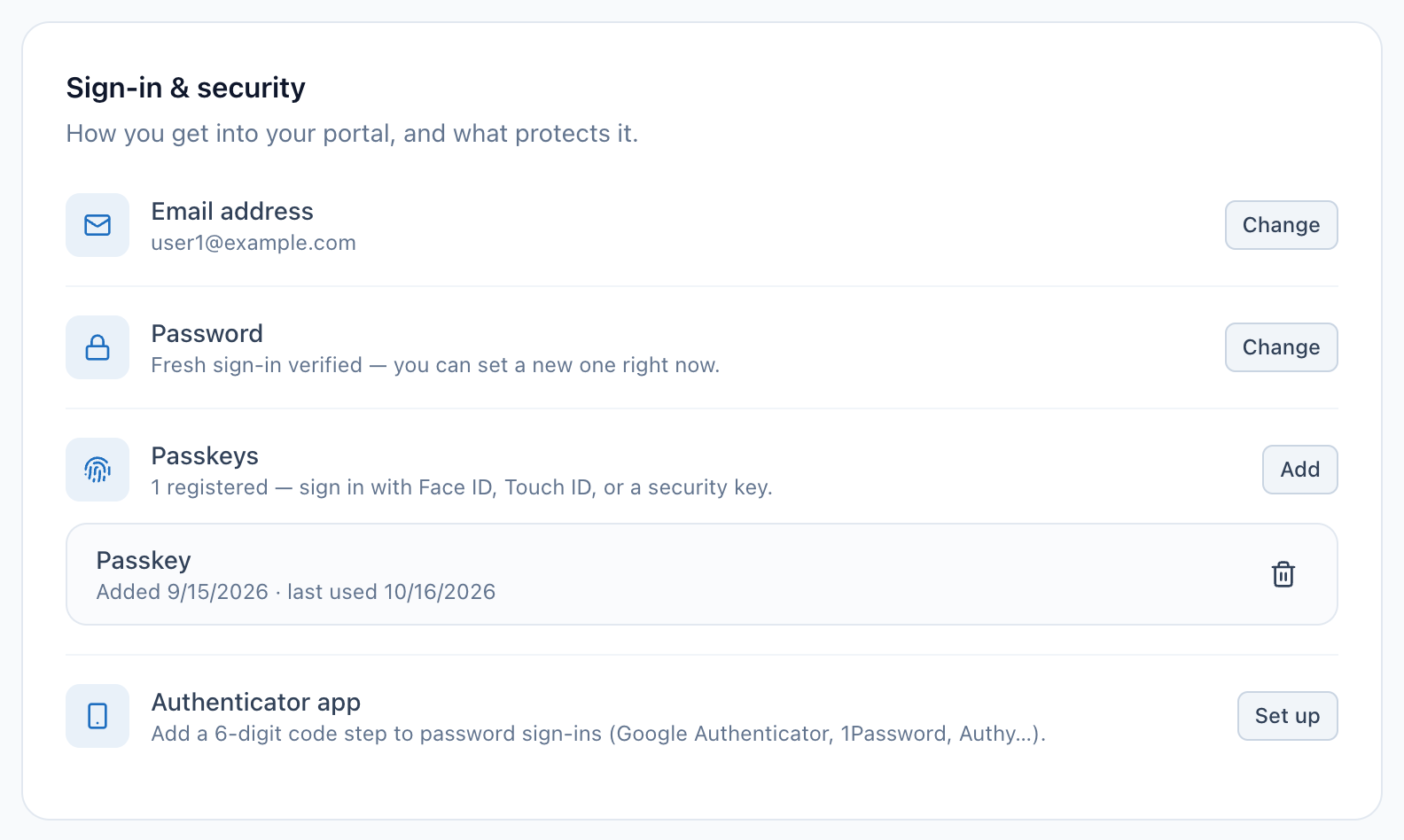
- Change next to Email address. You confirm the change with your current password.
- Change next to Password. It reads Set up when your account has no password yet.
- Add saves a new passkey from this device.
- The trash icon removes that passkey. You can no longer sign in with it.
- Set up turns on an authenticator app code for password sign ins.
Change your email
Choose Change next to Email address. Type the new address and your current password, then choose Update email. Use the new address the next time you sign in.
This is only for accounts with a password. If you sign in with Google, your email comes from Google and the row says so.
Change or set your password
Choose Change next to Password. Type your current password and a new one of at least 8 characters, then choose Update password.
Forgot your current password? Follow the reset steps in Sign in to DialClear.
If you signed up with Google, the button reads Set up. Setting a password gives you a second way in with your email and password.
Add a passkey
A passkey lets you sign in with Face ID, Touch ID or a security key, with no password.
- Choose Add next to Passkeys.
- Follow your browser's prompt to save the passkey.
- Next time, choose Sign in with a passkey on the sign in page.
Each passkey shows when it was added and last used. Add one for each device you use.
Turn on an authenticator app
An authenticator app adds a 6 digit code to sign ins that use your password. Apps like Google Authenticator, 1Password and Authy work.
- Choose Set up next to Authenticator app.
- Scan the QR code with your app, or type the key shown beside it.
- Type the 6 digit code the app shows and choose Verify & enable.
The row then shows an On badge. To turn it off, choose Turn off and type a current code from the app.
Note
The code is only asked for when you sign in with your password. Passkeys, emailed sign in links and Google skip it.
Light or dark mode
Under Preferences, choose Dark mode or Light mode. The moon or sun icon next to Billing in the menu does the same thing. The choice is saved for this browser only.
Inside your CRM
When you open DialClear inside your CRM, your profile is view only. Your name and email come from your CRM user, and the passkey and authenticator rows are hidden, because your CRM handles signing you in.
Troubleshooting
Update email says my password is wrong
The email change needs your current password, not a new one. If you forgot it, reset it first from the sign in page with Forgot password?.
I lost the phone with my authenticator app
Sign in with a passkey, an emailed sign in link or Google. Those skip the code. Then turn the authenticator app off and set it up again on your new phone. Turning it off asks for a current code, so if you cannot get one, email support@dialclear.co.
My passkey prompt never appears
Your browser or device may not support passkeys, or the prompt was closed. Try again, or use another way to sign in.