
Scrubbing a list of numbers in bulk
Upload a CSV file, match its columns, see the quote, and download your results.
9 min read
Before you start
- A CSV file of up to 10,000 rows
- A card on file, or a connected CRM account that pays from its wallet
Tip
Duplicate numbers in the file are screened and charged once, so you do not need to clean the file first.
The Bulk CSV tab on Lookups screens a whole file at once. You upload a spreadsheet saved as CSV, tell DialClear which column holds the phone number or address, check the price, and download the same file back with the results added as new columns.
Prepare your file
- Save it as a CSV file. Excel and Google Sheets both offer CSV under Save As or Download.
- Keep it to 10,000 rows or fewer. Split a bigger list into several files.
- Phone numbers must be US numbers with 10 digits. A leading 1 or +1 is fine, and so are spaces, dashes and brackets.
- Addresses can sit in one column or be split across columns for street, city, state and ZIP.
- A header row is helpful but not required. With one, DialClear matches the columns for you.
Upload and set up the scrub
Step 1. Open the Bulk CSV tab
Open Lookups and choose Bulk CSV on the lookup card.
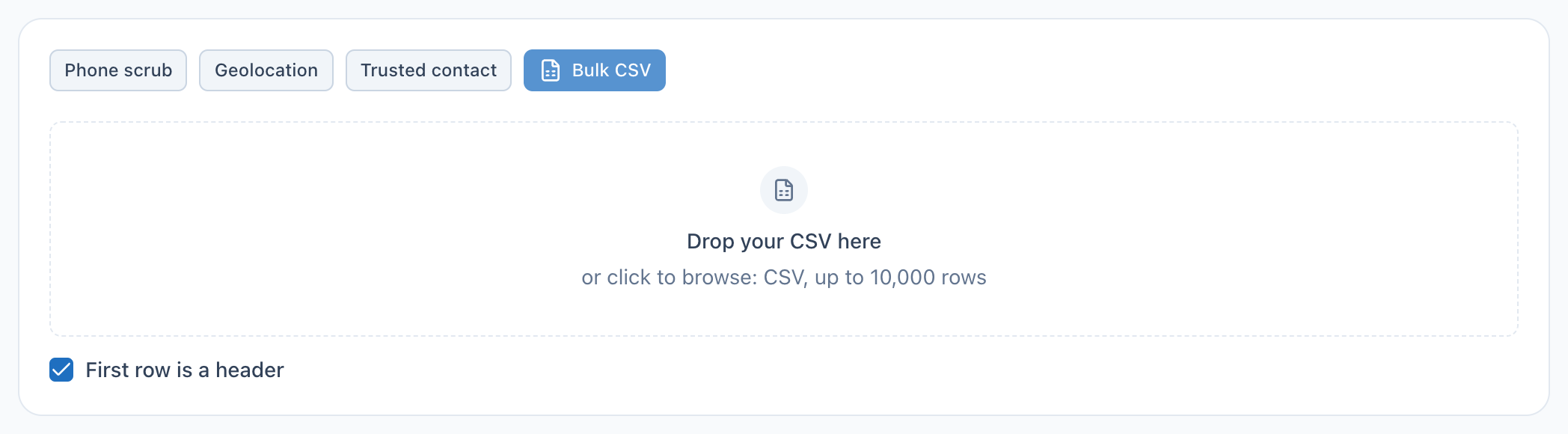
- The Bulk CSV tab. It swaps the single lookup form for the upload area.
- Drop your CSV here, or click to pick it from your computer.
- Leave this checked when the first row holds column names. Uncheck it when the first row is already data.
Step 2. Drop your file
Drag the file onto the upload area, or click it to browse. DialClear reads the file in your browser and opens the Set up bulk scrub window.
Step 3. Choose what to run
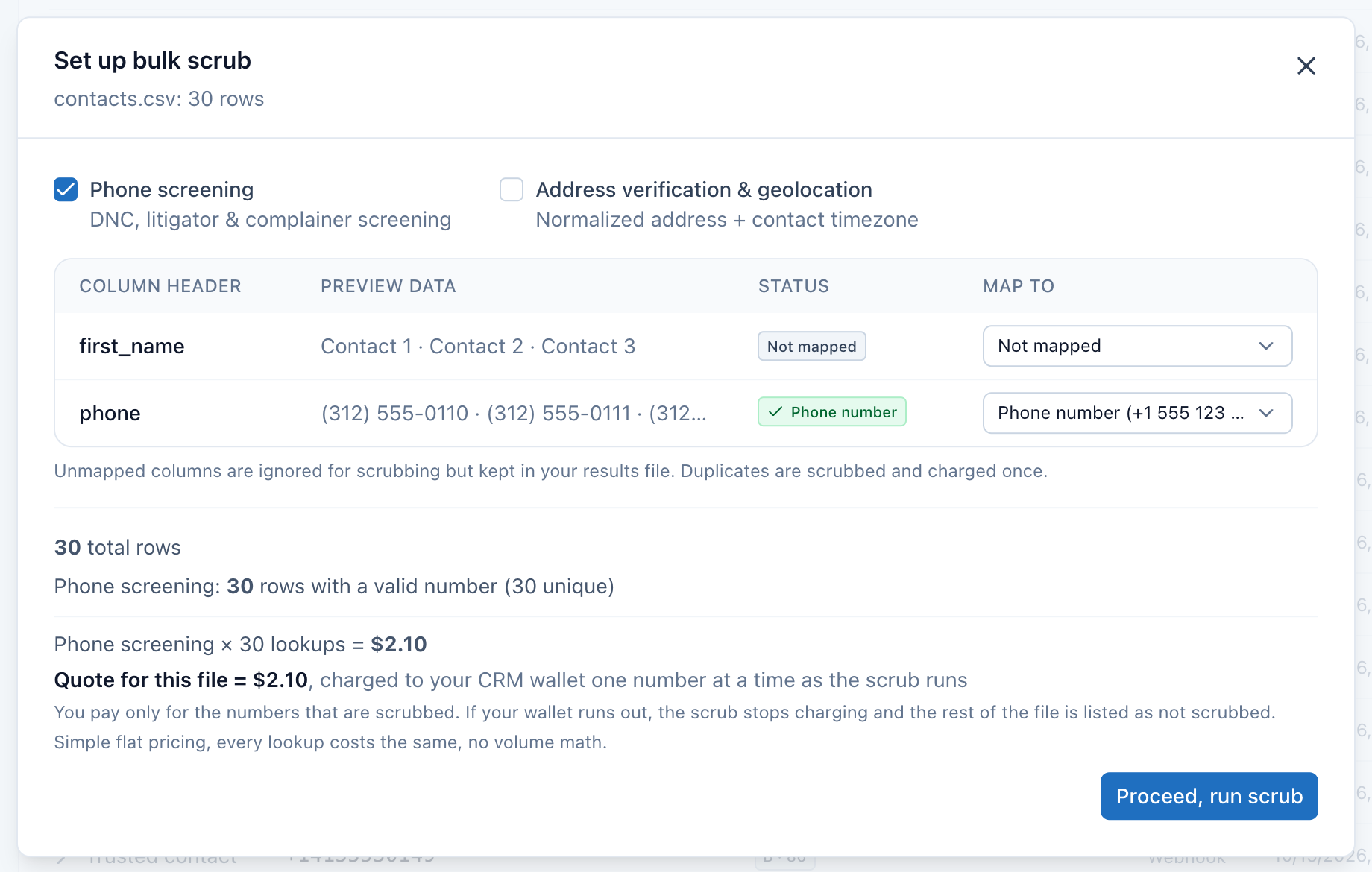
At the top of the window, check what you want.
| Option | What it does |
|---|---|
| Phone screening | Checks each number against Do Not Call, litigator and complainer lists, and marks wireless numbers |
| Address verification & geolocation | Turns each address into a standard address with county and time zone |
You can run both on one file. Contact verification and the premium checks are not available in bulk.
Step 4. Match your columns
Each column in your file is a row in the table. Preview data shows a few values from it, and Map to says which field it holds. With a header row, DialClear fills these in for you. Check them, and change any that are wrong.
- Phone screening needs one column mapped to Phone number.
- Address lookup needs either Full address, or the separate parts such as Street address 1, City, State and Postal code.
- Each field can be mapped to one column only. Picking it for a second column clears the first.
- Columns you leave as Not mapped are ignored for screening and kept unchanged in your results file.
Step 5. Check the cost
Under the table, DialClear counts your rows and works out the price as you map.
- Rows with a valid number or address are counted, along with how many of them are unique.
- Rows with a missing or invalid value are listed separately. They are not screened and not charged.
- Duplicates are screened and charged once.
The total uses the same flat price as a single lookup, with no volume discount. Phone screening is $0.07 a number and an address lookup is $0.08, or 7 and 8 tokens on a token balance. A CRM account keeps the prices it had at install, so the amount shown is the exact price for your account.
In a CRM account the total is shown as Quote for this file. It is what the file costs when every number is scrubbed. Your CRM wallet is charged one number at a time as the scrub runs, so you pay only for the numbers that are scrubbed.
Step 6. Run the scrub
Choose Proceed, run scrub.
- In a CRM account, the job always bills that account's CRM wallet, and there is no Bill to choice for bulk files. Nothing is charged when you proceed. Each number is charged to the wallet on its own just before it is scrubbed, the same way a single lookup is charged. If the wallet runs out partway through, DialClear stops charging, and the numbers it did not reach are listed as not scrubbed.
- Otherwise, the whole job comes from your token balance up front. If the balance cannot cover the whole file, nothing runs and nothing is charged.
A progress bar shows how many lookups are done and how many came back flagged. The scrub runs on our side, so you can close the window or the browser tab and it keeps going. A CRM account file of 10,000 numbers takes a little over an hour, because DialClear spaces the wallet charges so your CRM is never asked too fast.
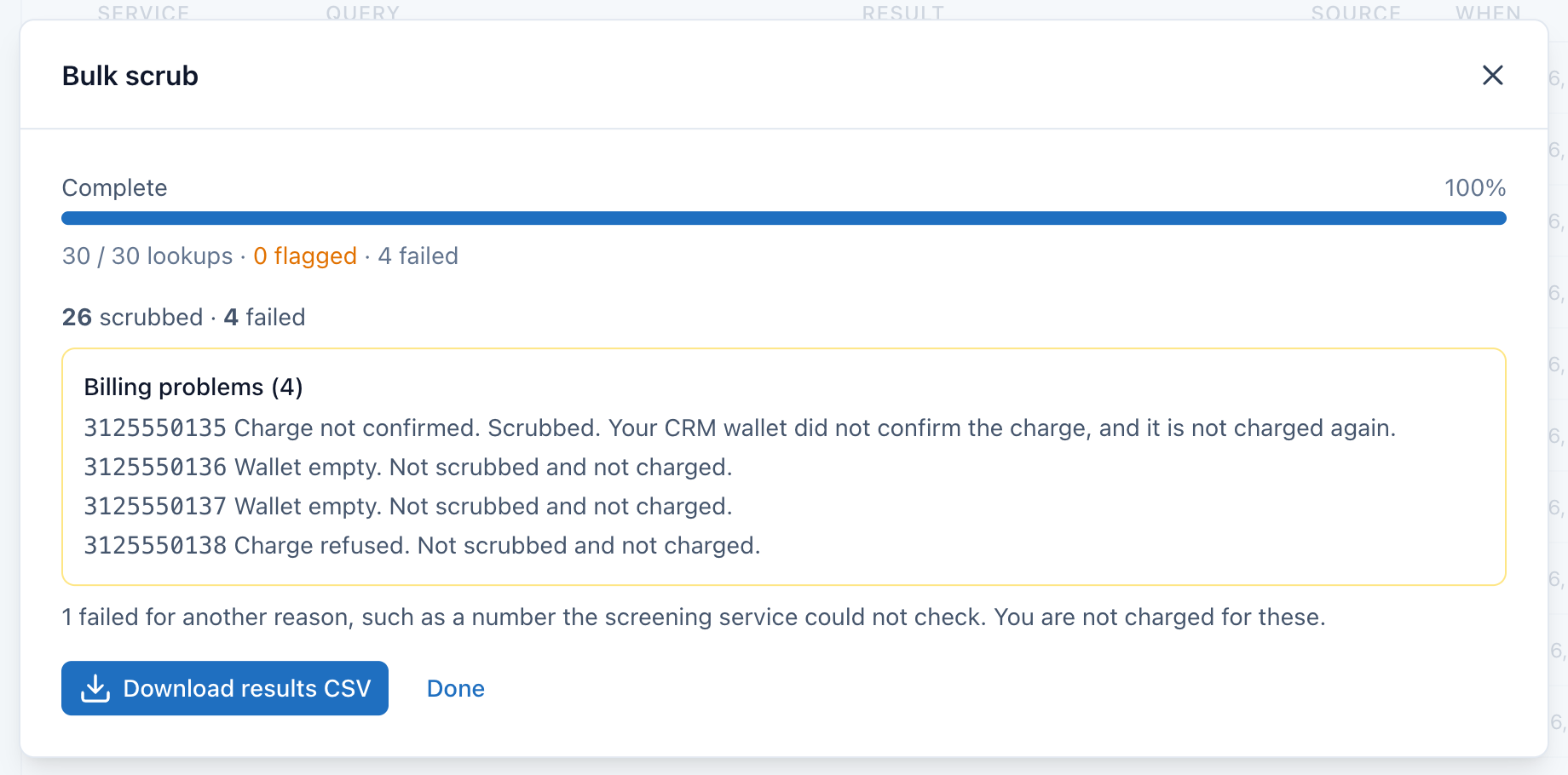
When the job finishes, the window shows how many numbers were scrubbed and how many failed. Numbers with a billing problem are named under Billing problems, apart from the other failures.
| Billing problem | What it means |
|---|---|
| Wallet empty | Your CRM wallet ran out. The number was not scrubbed and not charged. |
| Charge refused | Your CRM refused the charge, or the charge could not be sent after a few tries, or DialClear could not record it and so never sent it. The number was not scrubbed and not charged. When your CRM refuses, DialClear stops charging and the rest of the file shows this too. |
| Charge not confirmed | Your CRM wallet did not give a clear answer to the charge, or the scrub stopped after the charge. DialClear never charges that number again. The list says whether the number was scrubbed. If it was not scrubbed and your CRM wallet shows a charge for it, contact support. |
Download your results
When the job finishes, choose Download results CSV. You can also download it any time later from Recent bulk jobs under the upload area, which lists your last 10 jobs with a CSV button on each finished one.
The results file is your original file with new columns on the right.
| Column | What it holds |
|---|---|
dc_phone_status |
clean, flagged, or error when that number could not be screened |
dc_phone_flags |
Each list the number was found on, for example federal-dnc |
dc_wireless |
yes for a wireless number, no otherwise |
dc_street, dc_city, dc_state, dc_zip, dc_county, dc_country |
The address written the standard way. When an address could not be looked up, dc_street holds the error and the rest are empty. |
dc_timezone |
The contact's time zone |
dc_billing |
CRM account jobs only. The billing problem for that row, if it had one, using the same words as Billing problems |
Rows that were skipped for a missing or invalid value have these columns left empty. The results file is the full record of the job. Every number and address from the job also appears in the history on Lookups. A job you run while working in a CRM account is billed to that account's wallet and appears in that account's history. If you do not belong to any CRM account, the job is paid from your token balance and appears in your own history. Reading a lookup result explains each flag.
Note
A bulk scrub does not touch contacts in your CRM. It screens the file and nothing else.
Troubleshooting
The upload area is grayed out
You have no way to pay for lookups yet. Add a card on Billing, or open DialClear from a CRM account that has it installed.
The cost never finishes calculating
If Calculating cost… keeps spinning, the file most likely has more than 10,000 rows. Split it into smaller files and upload each one.
It says there are no valid phone numbers in the mapped column
The column you mapped to Phone number does not hold 10 digit US numbers. Check that you picked the right column, and that the numbers are not cut short.
I closed the window before the job finished
Open Lookups, choose Bulk CSV, and look under Recent bulk jobs. A job still running shows a Resume button that opens its progress again.
Some rows say error in the results file
Those numbers or addresses could not be looked up, and you are not charged for them. On a token balance, the tokens for each one that failed go back to your balance on their own. In a CRM account, the wallet charge for each one that failed is returned.
It says my token balance cannot cover the file
Nothing was charged. Buy tokens on Tokens, then upload the file again.
It says more than one CRM account is connected
You belong to more than one CRM account in the portal and have not picked one yet, so DialClear does not know which wallet to charge. Nothing was charged. The top of the left menu reads Choose an account until you pick one. Open the switcher there and choose the account to bill, as described in Pick an account before you change or spend anything. Then run the scrub again. Inside your CRM this never happens, because the account is the one you opened DialClear from.
My CRM wallet ran out partway through
The numbers scrubbed before the wallet ran out are charged and in your results. The rest show Wallet empty in the dc_billing column and were not charged. Add funds to your CRM wallet, then upload a file of just those numbers.
A number says Charge not confirmed
Your CRM wallet did not give a clear answer when that number was charged. The number was scrubbed and its result is in your file. DialClear never charges that number again for this job, so you are never billed twice for it. If you need to know whether it was charged, check the DialClear charges in your CRM wallet.