
Switch between accounts
Move between the CRM sub accounts you belong to from the account switcher at the top of the portal menu.
4 min read
Before you start
- Signed in at dialclear.co
- Access to more than one CRM sub account with DialClear installed
Tip
Check the name at the top of the menu before you change a setting. Settings belong to the account, not to you.
If you work in several CRM sub accounts that use DialClear, the portal lets you move between them without signing out. Everything you see, from Overview to Settings, belongs to the account named at the top of the left menu.
Switch to another account
Step 1. Open the switcher
In the portal at dialclear.co, choose the account name at the top of the left menu, just under the DialClear logo.
Step 2. Pick the account
The list shows every account you can open. The one you are in has a check mark. Choose another and the page reloads on that account. Choosing the account you are already in also records it, and the page reloads on it.
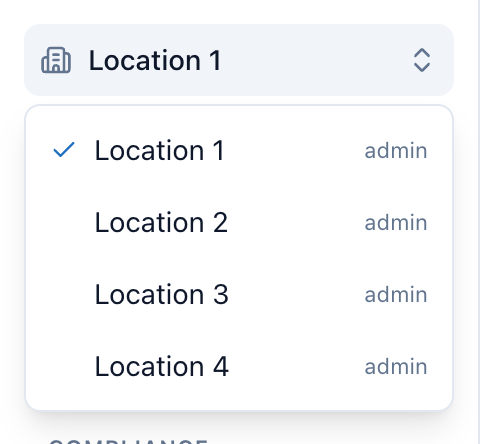
- The current account. Choose it to open the list of accounts you can switch to.
- The other accounts you belong to. Choose one to switch to it.
- The check mark shows the account you are in right now.
Pick an account before you change or spend anything
When you belong to more than one account and have not picked one yet, the top of the left menu reads Choose an account and nothing in the list has a check mark. The portal still shows the account you joined most recently so you can look around, but anything that changes an account or bills one, such as a bulk scrub or a settings change, waits until you pick. Open the switcher and choose the account you want to work in. The page reloads with that account's name at the top and a check mark beside it in the list.
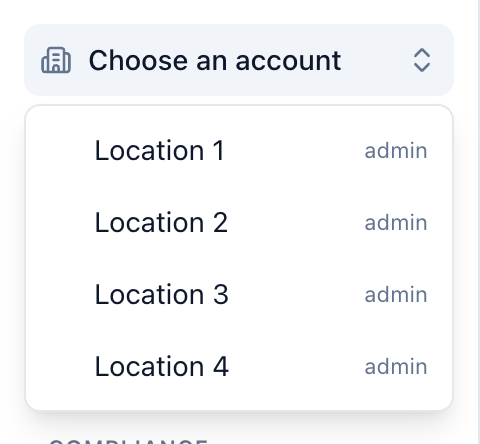 (opens full size in a new tab)
When you belong to more than eight accounts, a Find an account box at the top of the list lets you search by name.
Note
The portal remembers the account you picked, so you land back on it next time you sign in on this browser.
How an account gets on your list
An account shows up once you belong to it. That happens the first time you open DialClear from that sub account in your CRM, or when you install DialClear there. People who need to be switched on under Team access join the list once they have been switched on and have opened the app.
Frequently asked questions
I do not see a switcher
The switcher only shows when you belong to more than one account. With one account you see its name with no arrows. If you signed up directly at dialclear.co and do not use the CRM app, there is no account to switch to.
It says more than one CRM account is connected
You have not picked an account yet, so DialClear will not guess which one to change or charge. Nothing was changed or charged. Open the switcher and choose the account, as described in Pick an account before you change or spend anything, then try again.
There is no switcher inside my CRM
Inside your CRM, DialClear always opens the sub account you opened it from. To work in another sub account, go to that sub account in your CRM and open DialClear there.
An account I expect is missing
Open DialClear once from that sub account in your CRM, then reload the portal. If you see Access is limited there, ask someone with the Admin role in that sub account to switch you on. The screen names an older place for the setting, but it is on the Settings page under Team access.
Does switching change who pays for lookups?
Lookups you run for a CRM account bill that account's CRM wallet. When you can bill more than one place, the Lookups page asks which one pays.