
Sign in to DialClear
The four ways to sign in at dialclear.co, what to do when you forget your password, and how signing out works.
4 min read
Before you start
- A DialClear account
Tip
Add a passkey from your profile and you can sign in with Face ID, Touch ID or a security key, no password needed.
This is for the portal at dialclear.co. If you use DialClear inside your CRM, you never sign in. Open it from the left menu of your sub account and you are already in.
Choose how to sign in
Go to dialclear.co and open the sign in page. Pick whichever way suits you. They all open the same account.
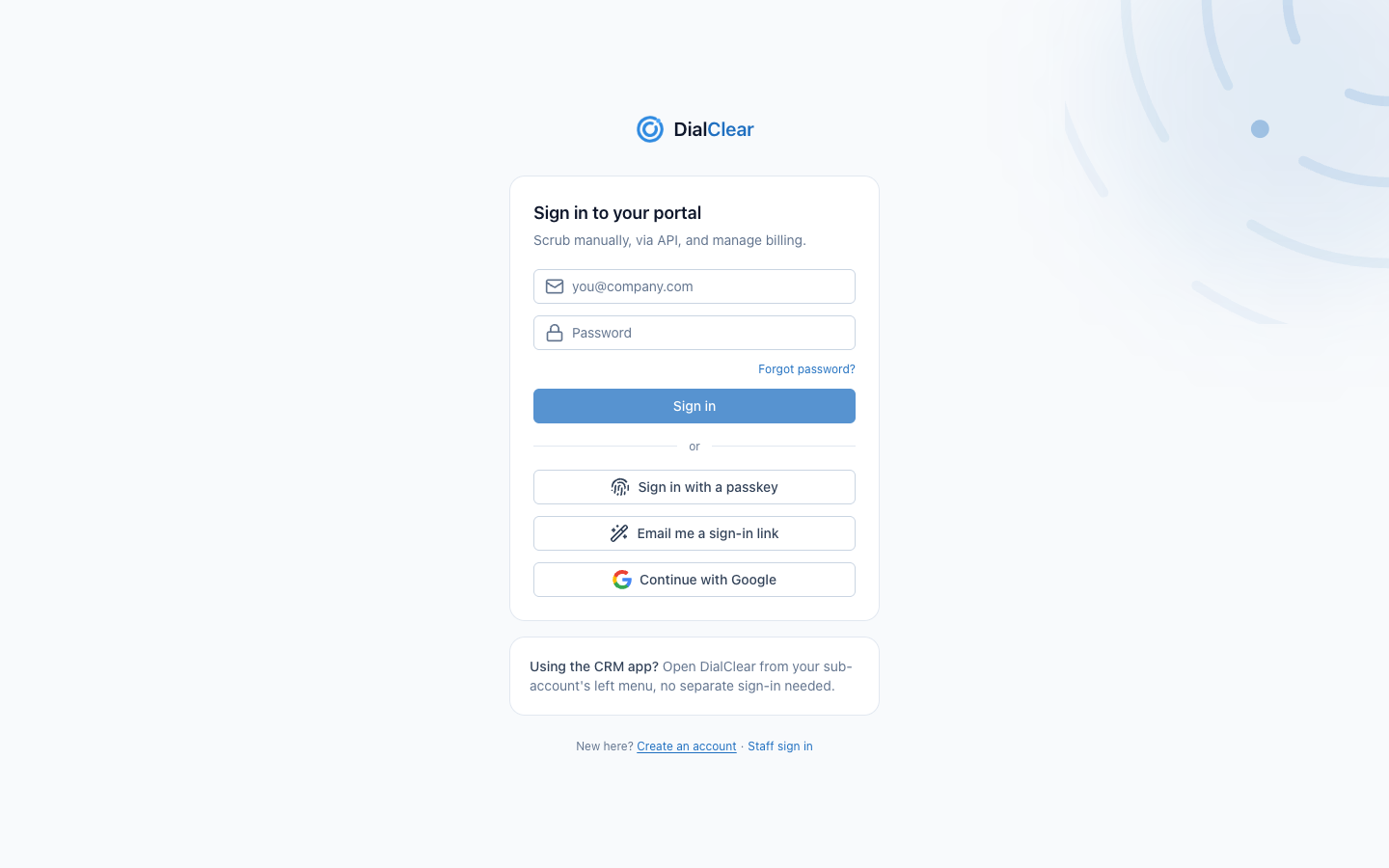
- Your email and password. Type both, then choose Sign in.
- Forgot password emails you a sign-in link, so you can get in and set a new password.
- Sign in with a passkey uses Face ID, Touch ID or a security key you added on your profile. No email needed.
- Email me a sign-in link sends a one time link to the email you typed above.
- Continue with Google signs you in with the Google account that has your DialClear email.
Step 1. Email and password
Type your email and password and choose Sign in.
Step 2. Enter your security code if asked
If you turned on an authenticator app, DialClear asks for the 6 digit code next. Open the app, type the code for DialClear and choose Verify. The code is only asked for when you sign in with a password.
Other ways in
Sign in with a passkey
Choose Sign in with a passkey. Your browser offers the passkeys saved for DialClear. Pick one and confirm with your face, fingerprint or device PIN. You add passkeys on your profile, see Manage your profile and sign in security.
Get a sign in link by email
Type your email in the first field, then choose Email me a sign-in link. Open the email from DialClear and choose Sign in to your portal.
Note
A sign in link works once and expires after 15 minutes. You can ask for one a minute, up to five an hour.
Continue with Google
Choose Continue with Google and pick your Google account. If DialClear has never seen that email, a new account is created for it.
If you forget your password
Step 1. Ask for a link
On the sign in page, type your email and choose Forgot password?. DialClear sends you a sign in link.
Step 2. Open the link
Open the email and choose the button. You land in your portal, signed in.
Step 3. Set a new password
Open your profile from the bottom of the left menu. Under Password, choose Change and type the new one. For 30 minutes after signing in from the link you do not need your old password.
Sign out
Choose the sign out icon next to your name at the bottom of the left menu. On a phone it sits at the top right of the screen. Inside your CRM you do not need to sign out, because your CRM signs you in each time you open DialClear.
Troubleshooting
I asked for a sign in link and nothing arrived
Check your spam folder first. Make sure you typed the email your DialClear account uses. If you asked twice within a minute, or more than five times in an hour, the extra requests are skipped, so wait a little and try once more. For privacy the page says the same thing whether or not the email has an account.
The link says it is invalid or expired
Links work once and only for 15 minutes. Ask for a new one.
My passkey is not offered
Passkeys are tied to the device or password manager where you saved them. Use another way to sign in, then add a passkey for this device on your profile.
I use DialClear in my CRM and have never set a password
Use Email me a sign-in link with the email your CRM user has. Once you are in, open your profile and choose Set up next to Password if you want one.