
Install DialClear from the App Marketplace
Add DialClear to a LeadConnector sub account, pick a plan, and know what starts running the moment the install finishes.
4 min read
Before you start
- A LeadConnector sub account
- Permission in your CRM to install apps
- Funds in your CRM wallet, since lookups bill the wallet
Tip
Review the Settings page right after you install. Every kind of lookup starts switched on.
Installing DialClear in your CRM puts it in the left menu of your sub account and starts screening contacts on its own. There is no separate DialClear account to create and no password to remember.
Install the app
Step 1. Find DialClear
In your CRM, open the App Marketplace and search for DialClear.
Step 2. Pick a plan
Choose Clear (free), Shield ($19/mo), DNC Audit Pack ($29/mo) or Compliance Suite ($48/mo). Every plan pays for lookups from your CRM wallet, and you can change plans later in the App Marketplace. Which features are in my plan explains what each one includes.
Step 3. Choose the sub account and approve
Pick the sub account to install into and approve the access DialClear asks for. A new tab opens when it is done.
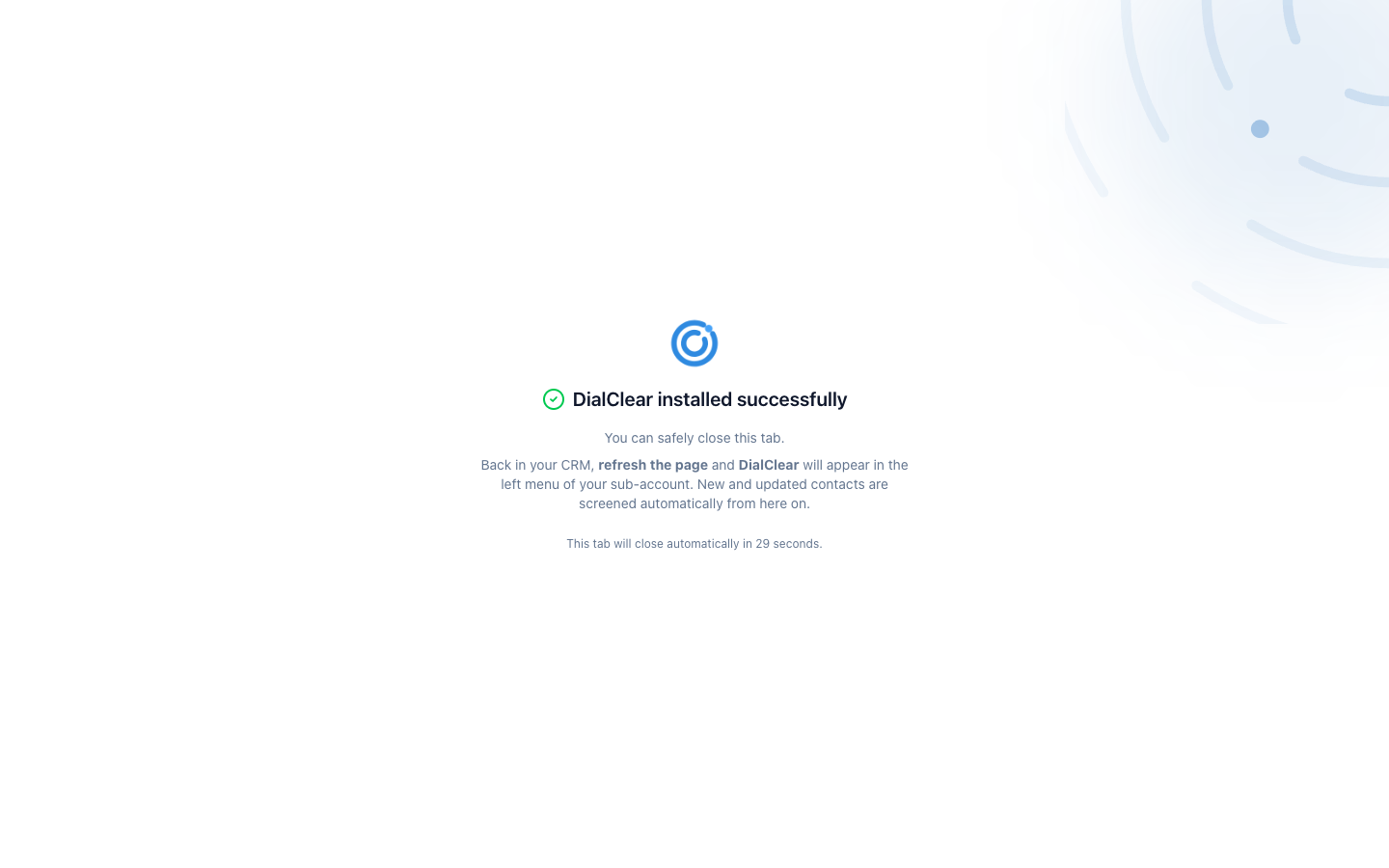
- DialClear installed successfully means the install worked. You can close this tab, and it closes on its own after 30 seconds.
- Go back to your CRM and refresh the page. DialClear then shows in the left menu of your sub account.
Step 4. Open DialClear
Back in your CRM, refresh the page and choose DialClear in the left menu. It opens on Overview.
What starts running right away
Warning
As soon as the install finishes, DialClear screens contacts that are created or updated in that sub account. Phone screening, address and location lookup, and contact verification all start switched on, and each one bills your CRM wallet when it runs.
A contact with a name, a phone number and an address can run all three, which is $0.23 at current prices. If you only want phone screening, open Settings and switch off the others under Automatic scrubbing. Premium checks start switched off. See Turning on automatic scrubbing for every option.
Automatic DND starts switched on too. When phone screening flags a number on any list, DialClear marks the contact Do Not Disturb for Call and SMS. See Turning on automatic DND to change the channels or the lists.
The install also adds DialClear's custom fields to your CRM, so each contact shows its own result.
Who on your team can open it
CRM users with the Admin role on the sub account can always open DialClear. Anyone else sees Access is limited until someone with that role switches them on under Team access on the Settings page and chooses Save team access. The Access is limited screen still points to an older place for this setting. It is on the Settings page under Team access. See Giving your team access.
Troubleshooting
DialClear is not in my left menu
Refresh the CRM page. The menu only picks up the new app after a reload. Check that you are in the sub account you installed into.
I see Almost there
DialClear is installed but the sub account is not linked yet. This happens when the approval step did not finish. Install it again from the App Marketplace and complete the approval. If it still shows, email support@dialclear.co.
I see Open DialClear from your CRM
That page only works inside your CRM. You opened it in a normal browser tab. Go to your CRM and open DialClear from the left menu, or sign in to the portal at dialclear.co.
Lookups stopped and mention my wallet
Your CRM wallet does not have enough funds. Add funds in your CRM and new lookups run again.
Can I install it on more than one sub account?
Yes. Each sub account is its own DialClear account with its own plan, settings and history. If you belong to several, you can move between them in the portal, see Switch between accounts.