
Find and export your billing transactions
Search, filter and sort every charge, token purchase, token spend and refund on your account, then download them as a CSV file.
5 min read
Tip
Export CSV downloads every transaction that matches your filters, across all pages, and the last column of every row records when the file was taken.
The Billing ledger card at the bottom of Billing lists every transaction on your account, newest first, 25 to a page.
What it lists depends on how you pay.
- In a CRM account, either inside your CRM or picked in the account switcher, it lists every charge to the account's CRM wallet. A charge that was refunded stays in the list, marked Refunded, with the date of the refund. A charge whose outcome the wallet never confirmed is marked Unverified, because the wallet may or may not have paid it.
- If you signed up at dialclear.co and have a card on file, it lists your token purchases, the tokens each lookup spent, tokens returned when a lookup failed, and any refunds or credits.
- If you have both, two buttons at the top right of the card switch between Wallet charges and My tokens.
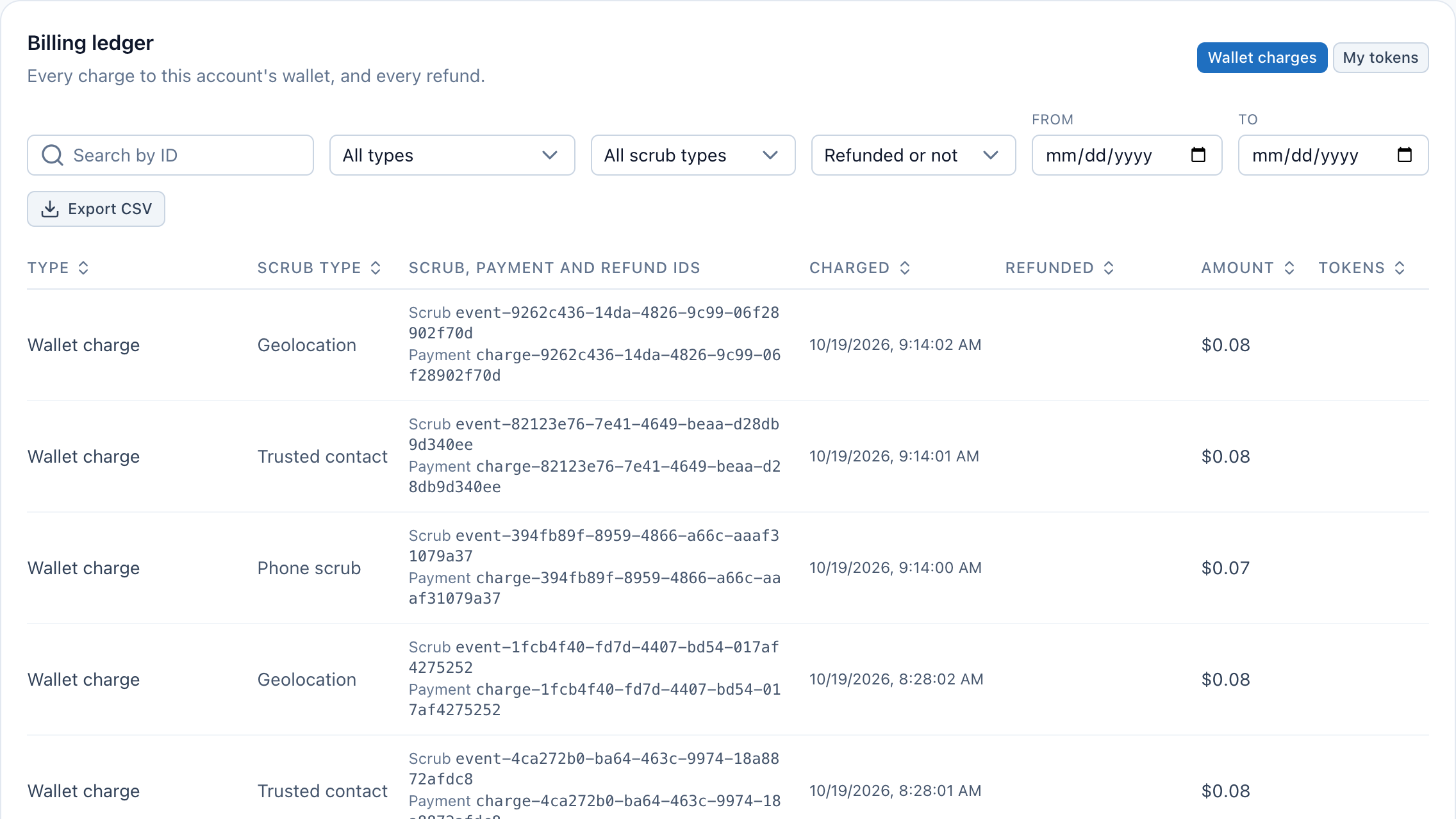
- Search by part of a scrub, payment or refund ID.
- Filter by transaction type, by scrub type, and by whether it was refunded in full, in part or not at all.
- Limit the list to a date range. Both dates are included in full.
- Export CSV downloads every matching transaction, with the time it was taken in the last column.
- Choose a column heading to sort by it. Choose it again to reverse the order.
- With a CRM account and a card of your own, switch between the account's wallet charges and your own tokens.
What each column shows
| Column | What it means |
|---|---|
| Type | Wallet charge, token purchase, token spend, token return, token refund, token grant, or plan tokens used at month end. |
| Scrub type | Phone scrub, geolocation or trusted contact, when the transaction paid for a lookup. |
| Scrub, payment and refund IDs | The scrub ID names the lookup. The payment ID names the charge or card payment. The refund ID appears when a card payment was refunded. |
| Charged | The date and time of the charge, purchase or spend. |
| Refunded | The date and time of the refund or return, when there was one. |
| Amount | The money involved, in US dollars. A token refund row shows a negative amount. A refunded wallet charge keeps its original amount and is marked Refunded. |
| Refunded mark | Refunded means all of it was given back. Partly refunded means only some of it was, so part of it still counts as paid. |
| Tokens | Tokens added (+) or spent. |
Refunded and partly refunded
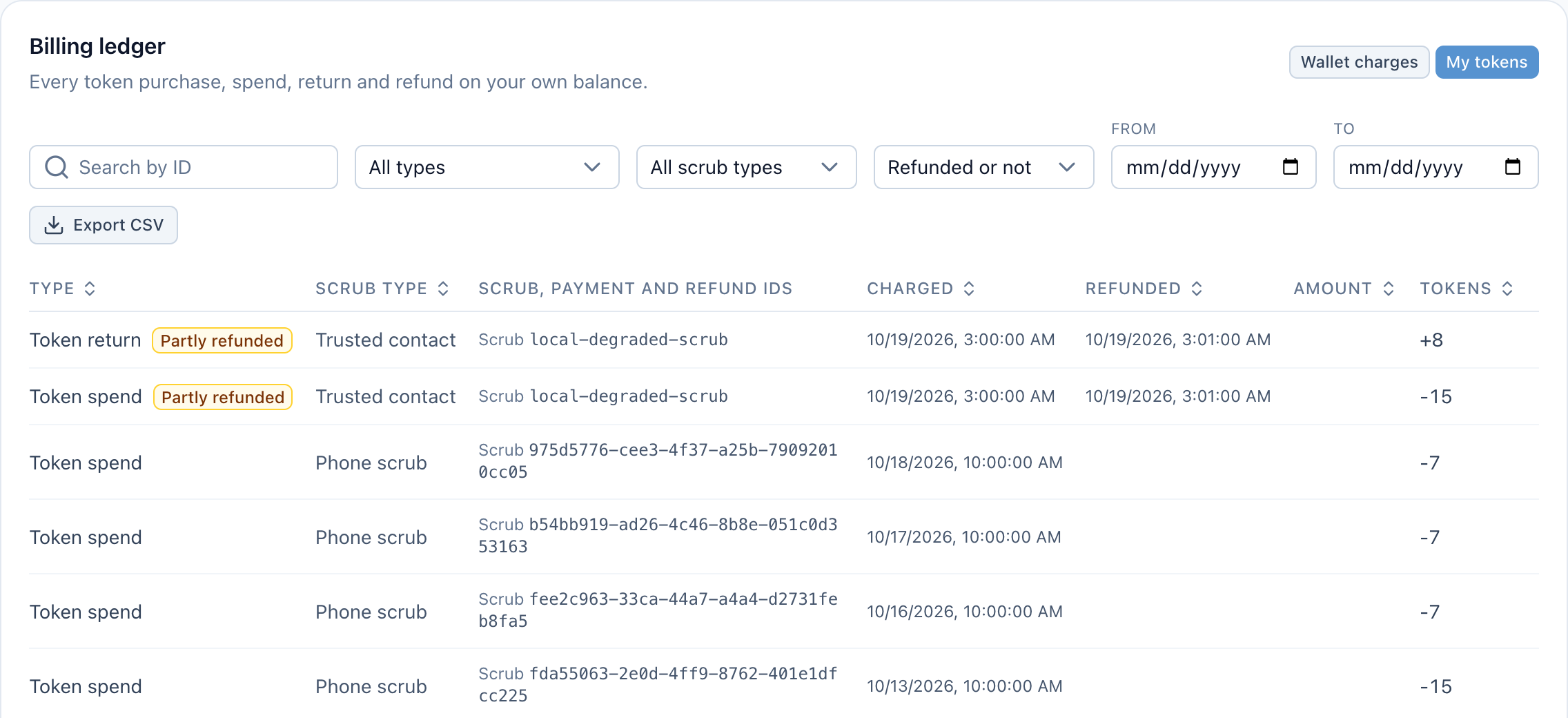
A transaction is marked Refunded only when all of it was given back. When only part of it was, it is marked Partly refunded, and the rest still counts as paid.
- A premium trusted contact lookup that could only return a standard result gets the difference in tokens back. The spend is Partly refunded, because the standard lookup was still paid for.
- When an account is closed, only the tokens left unspent are refunded. A purchase whose tokens were partly used is Partly refunded.
- A token return or token refund row carries the same mark as the spend or purchase it gives back.
 (opens full size in a new tab)
The Not refunded filter lists only what was never refunded at all, so pick Partly refunded as well to see everything that still counts as paid.
Narrow down the list
Step 1. Search by ID
Type part of a scrub, payment or refund ID in Search by ID. Capital letters do not matter.
Step 2. Filter
Pick a transaction type, a scrub type, or Refunded, Partly refunded or Not refunded. Set From and To to limit the list to a date range. Both dates are included in full. A refund or return counts on the day it happened. Clear puts every filter back.
Step 3. Sort
Choose a column heading to sort by it, newest or largest first. Choose it again to reverse the order.
Download a CSV
Choose Export CSV. The file holds every transaction that matches your filters across all pages, in the order you sorted them.
The last column, Exported at, holds the date and time the file was made, in UTC, on every row. A saved file therefore always says how current it is. The Refunded column says Yes, Partly or No.
When nothing matches your filters there is nothing to download, and Export CSV cannot be chosen.
Troubleshooting
The ledger says No transactions yet
Nothing has been charged or bought on this account yet. Run a lookup or buy tokens, and the transaction appears here.
A lookup I ran is missing
In a CRM account the ledger lists what the account's wallet paid. A lookup paid from your own token balance is under My tokens.