
Finding your way around Settings
What each card on the Settings page does, how to read the connection card, and how to fix a Connection error.
4 min read
Before you start
- DialClear installed in your CRM
Tip
Changes to scrubbing and DND save on their own. Team access is the one card with a Save button.
The Settings page controls how DialClear behaves in one CRM account. Each account you install DialClear in has its own settings, so a change here never touches another account.
Open Settings
Step 1. Go to Settings
Open DialClear from the left menu of your CRM, then pick Settings in the DialClear sidebar. If you can open more than one account, check the account name at the top of the sidebar first. Settings always belong to the account shown there.
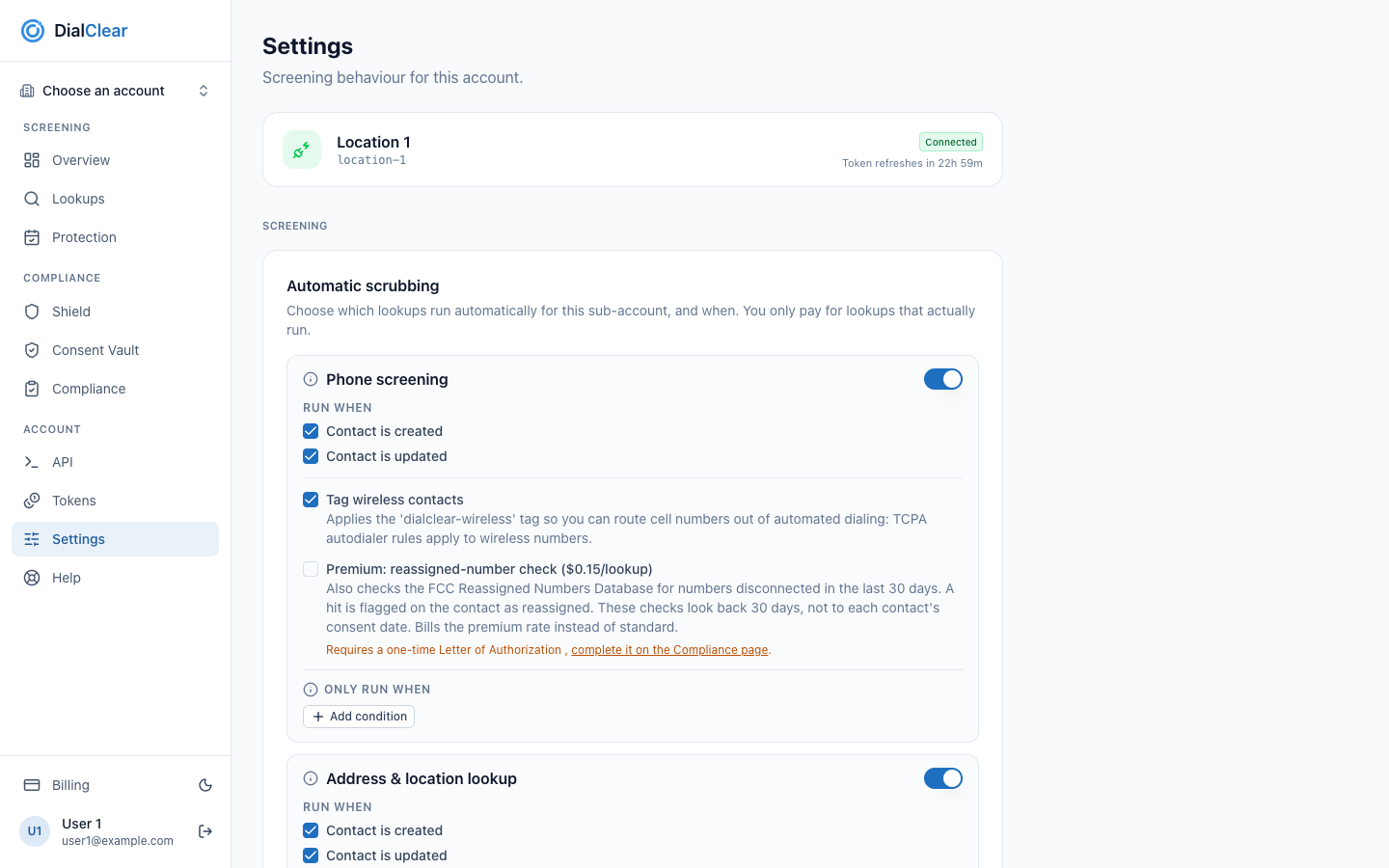
- The account you are looking at. Every setting on the page belongs to this account.
- The connection card. It tells you whether DialClear can reach your CRM.
- The first service row in Automatic scrubbing. Each service has its own switch and its own triggers.
What is on the page
The connection card sits at the top. Below it the cards come in two groups. Screening holds the cards that decide what DialClear does to new and updated contacts. Account holds the cards about who can use DialClear and what it adds to your CRM.
| Card | What it does | How it saves |
|---|---|---|
| Connection | Shows whether DialClear is connected to this account | Nothing to save |
| Automatic scrubbing | Picks which lookups run on their own, and when | Saves automatically |
| Automatic DND | Marks flagged contacts Do Not Disturb in your CRM | Saves automatically |
| Team access | Lets more of your CRM team open DialClear | Needs a click on Save team access |
| CRM custom fields | Adds or removes the DialClear fields on your contacts | Each button acts right away |
| API keys | Creates keys so your own server can request lookups | Each button acts right away |
When a switch or checkbox changes, the line at the bottom of the DND card reads "Saving…" and then "All changes saved." If a save fails, the same line shows the error and a Retry link.
Note
Only people with the Admin role in your CRM can change settings, and only they see the Team access and CRM custom fields cards. A team member let in through Team access sees the same switches, but a change they make does not save and shows the error Only an admin on this account can change its settings. Someone who opens DialClear without access at all sees a read only notice at the top of the page. In either case, ask someone with the Admin role to make the change.
Read the connection card
The connection card shows your account name and logo from your CRM. On the right is a badge.

- The account DialClear is connected to, with the name and logo from your CRM.
- The Connected badge, with the time until DialClear next renews its access on its own.
- Connected means everything works. The "Token refreshes in" line shows how long the next automatic renewal was away when the page loaded. It does not count down while you watch, and you never need to act on it.
- Connection error means DialClear cannot renew its access to this account. Screening is paused until the connection is restored. A red note under the card says the same.
- Not active means your CRM reports this sub account as deactivated, usually by your agency. DialClear stops trying to reach it and screening is paused. Reinstalling does not help while it is deactivated. Once your agency reactivates the sub account, reinstall DialClear as described below.
Fix a Connection error
Step 1. Uninstall DialClear
In your CRM, open the App Marketplace, find DialClear, and uninstall it from this account.
Step 2. Install it again
Install DialClear from the App Marketplace into the same account, then open it from the left menu. The badge should read Connected.
Tip
Your lookup history and your settings are kept through a reinstall. You do not need to set anything up again.
Troubleshooting
The page says No account connected
DialClear is not installed in the account you are in. Install DialClear from the LeadConnector App Marketplace in that account, then open it from the left menu of your CRM.
I changed a setting and it went back
The save probably failed. Check the line at the bottom of the DND card for an error and select Retry. If the error reads Only an admin on this account can change its settings, your CRM role cannot change them. Ask someone with the Admin role.
Do I have to click save after changing a switch?
Only on the Team access card. Every switch, checkbox and condition in Automatic scrubbing and Automatic DND saves about half a second after you change it.