
Managing DialClear fields in your CRM
See which DialClear custom fields are in your CRM, add any that are missing, or remove them all.
4 min read
Before you start
- The `Admin` role in your CRM
Tip
If results stop showing on contacts, check this card first. Add missing fields fixes most cases.
DialClear writes its results to custom fields on your contacts. Every one of them is named DialClear | followed by what it holds, so they are easy to find in your CRM, in smart lists and in workflows. The fields are created for you when DialClear is installed. The CRM custom fields card on Settings shows whether they are all there.
The fields DialClear adds
There are 42 fields in three groups.
| Group | Fields |
|---|---|
| Phone screening (6) | Last Time Scrubbed, Last Scrubbed Date, Last Number Scrubbed, Mobile Number, Blacklist Type, Blacklist Reason |
| Location lookup (30) | Street Number, Street, City, State, County, Postal Code, Country, each with a Long version, plus Longitude, Latitude, four Viewport fields, Location Type, Address Type, Place ID, two Plus Code fields, DST Offset, Timezone Offset, Timezone ID, Timezone Name and Timezone Abbreviation |
| Contact verification (6) | Trust Score, Trust Band, Line Type, Carrier, Line Status, Last Verified |
Last Scrubbed Date is a date field, so you can filter on it in a smart list. The others are text fields.
Check the fields
Step 1. Open the card
Open Settings and scroll to CRM custom fields. The line under the heading counts the fields, for example 36/42 fields present, and says how many are missing. Green means all of them are there.
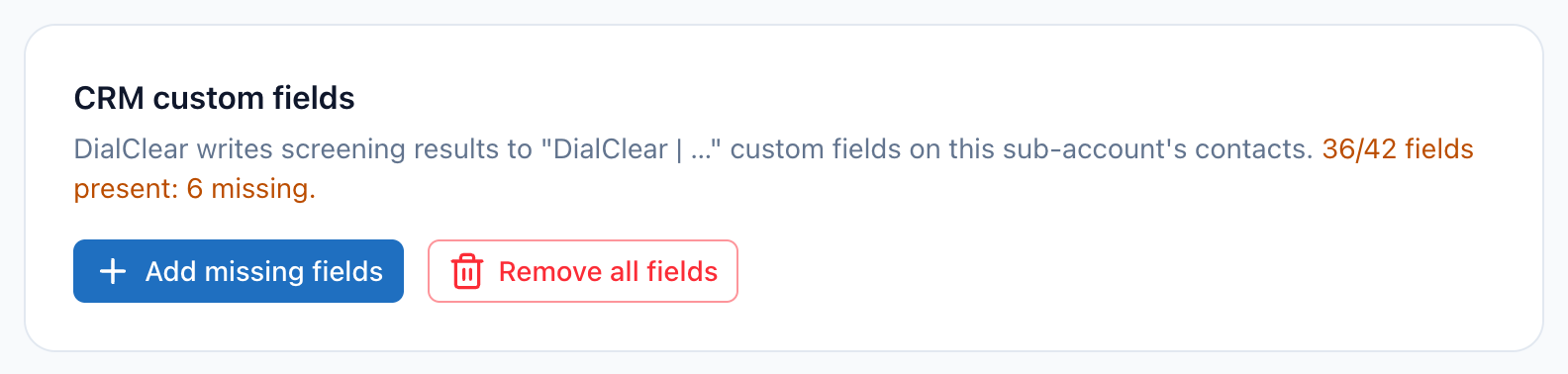
- The count of DialClear fields in your CRM. Orange means some are missing.
- Add missing fields creates every field that is not there yet.
- Remove all fields deletes every DialClear field and its data from your CRM.
Add missing fields
A field can go missing if someone deletes it in your CRM. Results for that field then have nowhere to land.
Step 1. Select Add missing fields
Select Add missing fields. The button only shows when at least one field is missing. When it finishes, the card reads "Fields ready" with the new count.
The same button also puts back any missing DialClear trigger tags, the ones described in Scrub a contact with a tag. Existing fields and tags are left exactly as they are.
Remove all fields
Removing the fields deletes them from your CRM, along with every value stored in them on every contact. Your history in DialClear is not affected.
Step 1. Select Remove all fields
Select Remove all fields. A red box asks "Remove all DialClear fields from your CRM?" and explains that the data will be permanently removed.
Step 2. Confirm once
Select I understand, continue. Select Cancel to stop here with nothing changed.
Step 3. Confirm again
The box now reads "Final confirmation, this cannot be undone." Select Permanently remove fields. When it finishes, the card reports how many fields were removed.
Warning
There is no undo. Values in the fields are gone from every contact. Adding the fields back later creates empty fields.
Important
The next lookup that writes to a contact creates the fields again. That includes automatic lookups, trigger tags, re-scrubs you start by hand, 30 day Protection and requests from your server through an account key. To keep the fields gone, turn off the services in Automatic scrubbing and stop the other lookups first. Trigger tags are not removed, because your own workflows may use them.
Troubleshooting
I do not see this card
It only shows for people with the Admin role in your CRM.
Add missing fields finished but the count is still short
Your CRM may have refused some of the creates for a moment. Select Add missing fields again. If it keeps failing, check the connection card at the top of Settings.
I renamed a DialClear field and now it shows as missing
DialClear finds its fields by their exact names. Rename the field back, or select Add missing fields to create a fresh one with the right name.