
Giving your team access to DialClear
Choose which people in your CRM account can open DialClear, and save the list.
3 min read
Before you start
- The `Admin` role in your CRM
Tip
This is the one card on Settings that does not save on its own. Select Save team access when you are done.
People with the Admin role in your CRM can always open DialClear in that account. Everyone else on your CRM team needs to be let in on the Team access card. Access is per account, so each account has its own list.
Give someone access
Step 1. Open the Team access card
Open Settings and scroll to Team access. The card lists every user in this CRM account with their name, email and role.
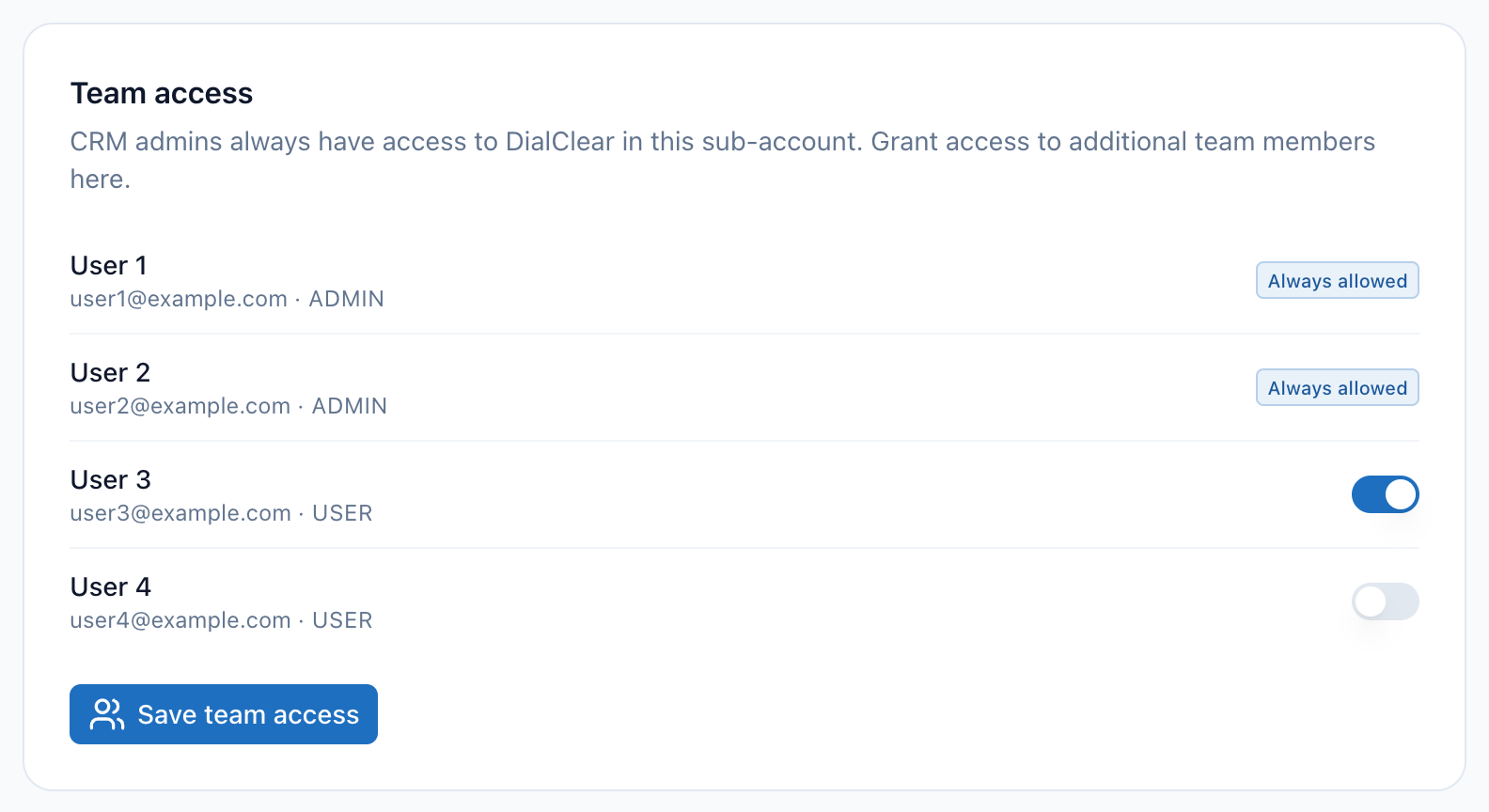
- Team access. Only people with the
Adminrole in your CRM see this card. - Always allowed. People with the
Adminrole in your CRM always have access, so they have no switch. - Everyone else has a switch. Switch it on to let that person open DialClear.
- Save team access. Nothing on this card changes until you select it.
Step 2. Switch people on
Each person without the Admin role has a switch on the right. Switch on everyone who should be able to open DialClear.
Step 3. Save
Select Save team access. "Saved." appears next to the button when the list is stored.
Important
This card does not save on its own. If you leave the page before selecting Save team access, your switches are lost.
What access gives
A person you switch on can open DialClear from the left menu of your CRM in this account and use it there. Changing settings, managing CRM fields and creating API keys stay with people who have the Admin role in your CRM.
On Settings, a team member sees the same switches and checkboxes you do, with no notice that they are view only. A change they make does not save, and the error Only an admin on this account can change its settings appears at the bottom of the DND card.
Note
Someone who opened DialClear as a team member and is later given the Admin role in your CRM keeps team member rights in DialClear. Email support@dialclear.co with their name and the account to have that changed.
Troubleshooting
I do not see the Team access card
It only shows for people with the Admin role in your CRM.
The card says it could not load your CRM's user list
DialClear could not read your team from your CRM. Check the connection card at the top of Settings. If it shows Connection error, follow the steps in Finding your way around Settings.
I switched someone off but they can still open DialClear
Switching someone off stops them from getting in for the first time. A person who already opened DialClear in this account keeps access after you switch them off. To remove that person, email support@dialclear.co with their name and the account.
Someone new joined my CRM team and is not in the list
Reload Settings. The list is read from your CRM each time the page opens.